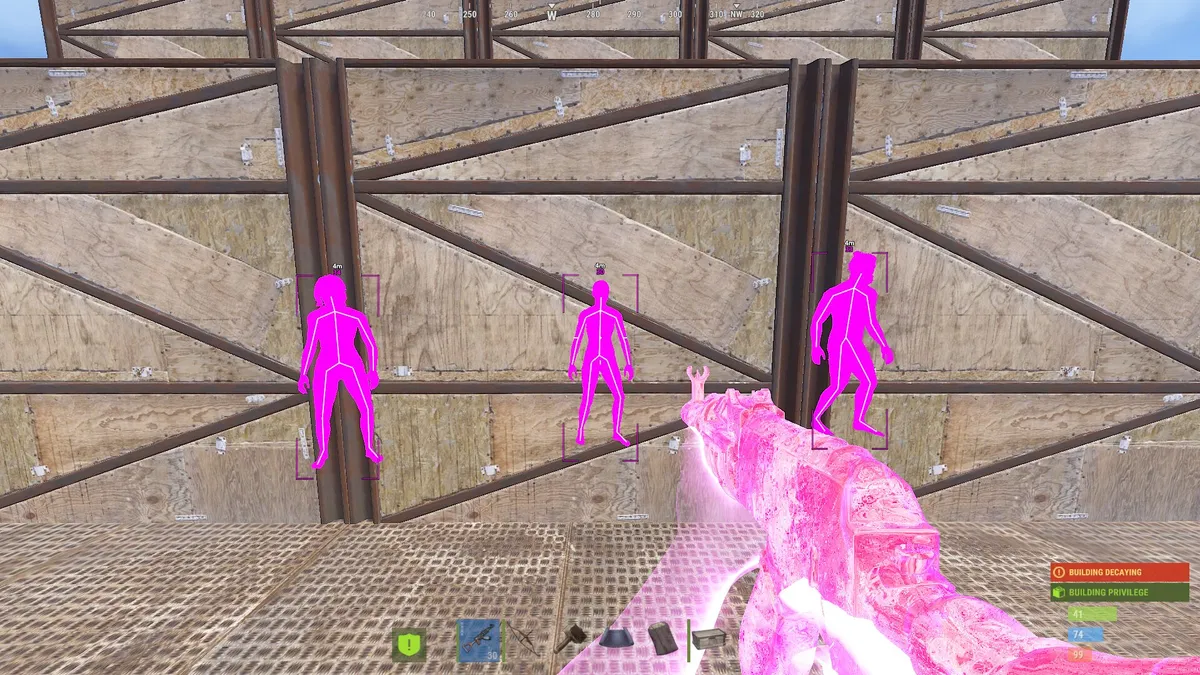

Rust is brutal. You can farm for hours only to lose everything to a group that is one step ahead. Cheats give you information and precision that vanilla gameplay doesn't — ESP, aim assistance, radar and more.
This guide explains how Rust cheats are installed, what you need, and the risks to understand first. Make sure you've already chosen a build and bought it safely before following along — this setup works for both Disconnect Rust External and Disconnect Rust Internal.
If you are dealing with a possible hardware-related restriction, read the Rust HWID spoofer and EAC guide before installing anything. A Rust spoofer, cleaner, game account, and VPN affect different parts of the environment and should not be treated as interchangeable.
Before You Install: Key Risks
Rust uses Easy Anti-Cheat (EAC), which is aggressive. Keep these in mind before loading anything:
Permanent bans: EAC bans are usually permanent.
Download risk: Files shared through unofficial videos, direct messages, mirrors, or repackaged repositories may be outdated or tampered with.
No cheat is ever 100% safe: Current status information and maintained instructions can reduce avoidable mistakes, but they cannot remove all account or system risk.
Only use cheats from a provider you trust, and always assume some level of risk.
Step 1: Use a Trustworthy Provider
Where you get your cheat matters more than anything else. Look for:
- A private, actively maintained build — not a reposted public cheat
- Fast updates around Rust patches and EAC changes
- A clear status page showing the current product state
- Real support through Discord or tickets
Treat claims such as "100% undetected" and downloads hidden behind link shorteners as warning signs. Verify the source before opening any file.
Step 2: Prepare Your PC
Update Windows and drivers — outdated systems can crash or BSOD on load.
Close conflicting overlays — recording overlays, MSI Afterburner/Rivatuner, and third-party injectors can cause conflicts.
Use a separate account for cheating — never treat a cheating account like your main. If it gets banned, it's gone.
Step 3: Download the Loader
Modern Rust cheats are delivered through a loader, not a loose DLL. The usual flow:
- Buy or gain access on the official site
- Download the loader from your dashboard
- Sign in with your license key
Security tip: The loader should come directly from the provider's site or panel — never from a third-party reupload.
Step 4: Handle Antivirus and Windows Defender
Security software may flag programs that interact with another process. A warning is not proof that a file is safe or malicious, so verify that the download came from the official source and follow the current product-specific instructions rather than disabling protection broadly:
Whitelist the loader folder in Windows Security → Virus & threat protection → Exclusions.
Or temporarily disable real-time protection while loading, if your provider's guide says to, then re-enable it after.
Warning: Disabling antivirus raises your risk. Only do it for a provider you fully trust, and only with files downloaded from their official site.
Step 5: Run the Loader as Administrator
Most Rust cheats need admin rights:
- Right-click the loader → Run as administrator
- Sign in with your license key
- Select Rust if the loader supports multiple games
- Wait for it to verify your subscription and show the current status
Two Common Injection Styles
Load before Rust: run the loader, click Load/Inject, then start Rust when prompted — it attaches automatically.
Load after Rust: start Rust and sit at the main menu, then alt-tab, run the loader and click Inject. The menu appears in-game after a few seconds.
Follow whatever your provider's manual recommends.
Step 6: Test In-Game
- Start Rust
- Join a server you don't care about to test stability
- Open the cheat menu (often Insert or Delete) and confirm features load
- Once stable, move to the server you actually want to play
Your cheat is now installed. The next step is learning to use it without looking obvious.
Common Installation Issues
Cheat Will Not Inject
- Make sure Rust is fully loaded
- Run the loader as administrator
- Whitelist or disable antivirus
- Confirm the build is updated for the current Rust version
- Restart and try again
License Key Invalid
- Check for typos
- Verify your subscription is active
- Contact support
Game Crashes on Injection
- Update graphics drivers
- Verify Rust files in Steam
- Lower cheat settings
- Confirm the build is current
Cheat Menu Won't Open
- Try the alternate menu hotkey
- Check for a binding conflict
- Reinject and restart Rust
ESP Not Showing
- Confirm ESP is enabled in the menu
- Increase ESP render distance
- Verify the ESP toggle isn't off
Safety Tips After Installation
Use legit settings: miss some shots, don't pre-aim corners, don't track players through walls. See how to look legit.
Use a separate account: keep your main clean by playing on a dedicated cheating account.
Stay updated: check Discord daily, update immediately after Rust patches, and don't load an outdated build.
Updating Your Cheat
When Rust updates:
- Don't launch Rust until the build is updated
- Check Discord / the status page for the all-clear
- Download the new loader version from your dashboard
- Wait for the safe status
- Test on a throwaway account first
Frequently Asked Questions
Are Rust cheats ever 100% safe?
No. A build can have an undetected status at one point and change later as the game or anti-cheat changes. Nobody can guarantee "safe forever."
What do I need to install Rust cheats?
A Windows PC (most cheats don't support Linux/macOS), a legit copy of Rust on Steam, the loader from a trusted provider, and WinRAR/7-Zip if the loader ships compressed.
Can I get banned even if the cheat is undetected?
Yes — from obvious behaviour, manual reports, or a future detection that flags past sessions. Playing legit is your best protection.
Conclusion
Installing Rust cheats is straightforward once you understand the process:
- Use a trustworthy provider
- Prepare your PC
- Download from the official source
- Handle antivirus
- Run as administrator and inject
- Test, then play with legit settings
- Stay updated
Next steps:
- Learn how to look legit
- Compare builds in best Rust cheats or browse all Rust cheats
- Review how to buy safely
Check the status page and current product instructions before every use; neither removes all risk.